Nebula Is Now Available in ChatGPT, with MCP Support and New Sign-in Options
The Nebula plugin for ChatGPT is live. Together with MCP support for Claude, Claude Code, Codex and other assistants, and sign-in with Google or GitHub, it brings Nebula's document conversion into the AI tools people already use.

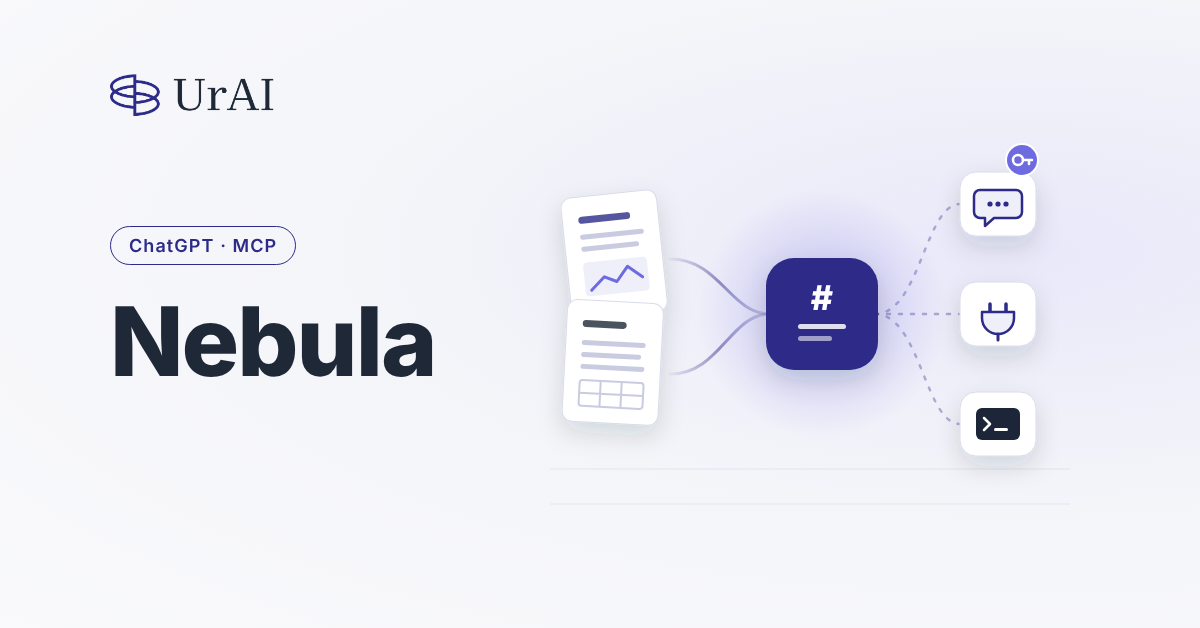
The Nebula plugin for ChatGPT is now live. Attach a PDF, a scan or a spreadsheet in a ChatGPT conversation, or paste a link to one, and Nebula turns it into clean, structured Markdown that ChatGPT can read and reason over, including tables, charts and handwriting.
The plugin is part of a simple idea: Nebula should be where you already work. Most people now do their thinking with an AI assistant open, and that is where their documents end up. So instead of asking you to come to our portal, we decided to bring Nebula to your assistant.
What is new
- Nebula plugin for ChatGPT. Search for "Nebula" under Plugins in ChatGPT, connect your Nebula account, and convert documents without leaving the conversation.
- MCP support. Nebula runs as a remote MCP server, so assistants that support the Model Context Protocol can use it too: Claude, Claude Code, Codex, Cursor, VS Code, Gemini CLI, Zed and more. It is open to every Nebula account as a beta.
- Sign in with Google or GitHub. You can sign in to Nebula with your Google or GitHub account, alongside email and password.
In every case, Nebula works with your own account and credits. Conversions are billed per page at 1 yen per page, the same as on the web and the API.
Why it matters
Large language models are good at reasoning, but they are only as good as what they can read. A scanned contract, a financial table that spans two pages or a chart inside a slide often reaches the model as broken text. Nebula fixes that step. It preserves the layout, reads tables and charts, and gives the assistant structured Markdown it can answer from, with fewer tokens.
What I keep hearing from customers is that they do not want another tool to switch to. They want the tools they already use to read their documents properly. Putting Nebula inside ChatGPT, Claude and the other assistants people already work in is how we get there.
Set up Nebula in ChatGPT
- 1. In ChatGPT, open Plugins and search for "Nebula", or open the Nebula plugin page from the Links section below.
- 2. Select Nebula and connect it.
- 3. A Nebula page opens. Sign in to your Nebula account and click Approve. If you do not have an account yet, you can create one there.
- 4. In a chat, type @Nebula and pick it, attach a file or paste a link, and ask, for example: "@Nebula convert this to markdown." You can then ask follow-up questions about the content in the same chat.
ChatGPT connects with your Nebula account sign-in; API keys are not used there. In ChatGPT Business and Enterprise workspaces, an admin may need to allow the plugin first.
Connect Nebula to other assistants via MCP
The Nebula MCP server address is:
https://mcp.nebula.ur-ai.net/mcp
Add it once, and sign in with your Nebula account when asked. Coding tools can use a Nebula API key instead, which you create under API Keys in your Nebula account.
| Assistant | How to connect |
|---|---|
| Claude (claude.ai, Claude Desktop, Claude mobile) | Open Customize, then Connectors, then Add custom connector. Name: Nebula. URL: the server address above. Click Add, then Connect, sign in on the Nebula page and click Approve. The connector also appears in Claude Desktop and the mobile apps. On Team and Enterprise plans, an Owner adds it once under Organization settings, then Connectors, and each member connects it. |
| Claude Code | Run: claude mcp add --transport http nebula https://mcp.nebula.ur-ai.net/mcp. Then run /mcp in a session, choose nebula, sign in and Approve. To use an API key instead, add: --header "Authorization: Bearer YOUR_KEY". |
| Codex (CLI, IDE extension, app) | Run: codex mcp add nebula --url https://mcp.nebula.ur-ai.net/mcp, then run: codex mcp login nebula to sign in. To use an API key instead, set NEBULA_API_KEY and add --bearer-token-env-var NEBULA_API_KEY to the first command. |
| Other tools (Cursor, VS Code, Gemini CLI, Zed and more) | Add a remote MCP server (HTTP, sometimes called streamable HTTP) with the server address above. If the tool offers sign-in, sign in and approve on the Nebula page. Otherwise send the header Authorization: Bearer YOUR_KEY. |
Using Nebula in your assistant
Ask in plain words and name Nebula, so the assistant uses Nebula rather than its own built-in reader. The assistant sends the document, waits for the conversion and shows you the result. A few requests that work in any assistant:
- "Convert this PDF to markdown with Nebula."
- "Convert https://example.com/report.pdf with Nebula."
- "Convert this with Nebula and list the tables."
- "What's my Nebula balance?"
In coding tools such as Claude Code and Codex, Nebula can convert files on your computer and save the Markdown next to the original, for example docs/report.md beside docs/report.pdf. In Claude Code you can also type /nebula:convert docs/report.pdf.
A photo or screenshot pasted into the chat is read by the assistant itself, not sent to Nebula. To convert it with Nebula, attach the original file, for example the PDF.
You stay in control. Under Settings, then Sessions, then Connected apps in your Nebula account, you can see every app you have allowed and disconnect any of them at any time.
The full setup guide is in the Nebula docs, linked below.
Data handling
Nebula processes your documents under the same terms whether you use it on the web, through the API or from an assistant. Where Nebula uses OpenAI's API, Zero Data Retention is enabled, so OpenAI does not keep your documents or the outputs. For workloads that cannot leave your environment, Nebula Sovereign can be deployed in a private cloud or on-premises.
If your team wants to bring Nebula into its own assistants or workflows, write to us at contact@ur-ai.net.
Frequently Asked Questions
How do I add Nebula to ChatGPT?
In ChatGPT, open Plugins, search for "Nebula" and connect it, then sign in to your Nebula account and click Approve. In a chat, type @Nebula, attach a file or paste a link, and ask it to convert the document.
Which AI assistants can use Nebula?
ChatGPT through the Nebula plugin, and any assistant that supports remote MCP servers, including Claude, Claude Code, Codex, Cursor, VS Code, Gemini CLI and Zed, through the Nebula MCP server at https://mcp.nebula.ur-ai.net/mcp.
How much does it cost to use Nebula in ChatGPT or via MCP?
Conversions use your Nebula credits at the same rate as the web app and the API: 1 yen per page. There is no separate charge for the plugin or the MCP server.
How do I sign in to Nebula?
With your Google or GitHub account, or with email and password. Assistants connect to Nebula by opening a Nebula sign-in page where you approve access; coding tools can also use an API key.